If after studying this topic you still have questions, please go to CUSTOMER SUPPORT FORUM to ask your question.
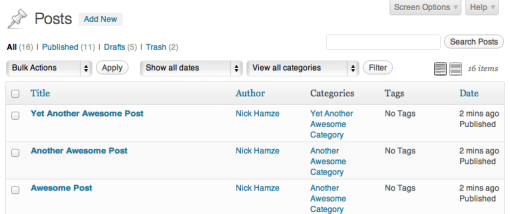
Some ONEvoiceFamily.com sites come with preloaded posts. To customize your posts, create new (Add New) ones. Start by either deleting or hiding the provided posts (by making them private), then create new (Add New) posts. There are many times you will desire to edit posts. To edit your blog’s posts, click the Posts menu in your dashboard.

You’ll see something like this:
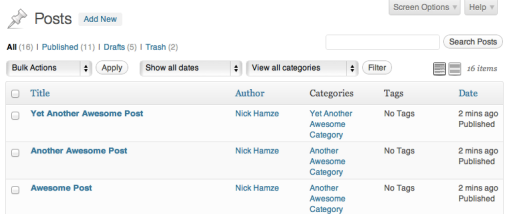
Filtering Posts
You can filter the posts displayed using several methods. The first method is using the links at the top of the screen.
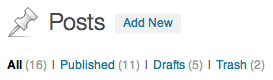
You may also see Private and Pending Review links.
The next method is using a search.

The final filtering method is to use the date and category dropdown boxes and then click on the Filter button.

Deleting Posts
There are a couple of ways to remove posts from the Posts screen. If you want to trash multiple posts at once, you can check the boxes to the left of each post, select Move to Trash from the Bulk Actions dropdown, and click Apply.
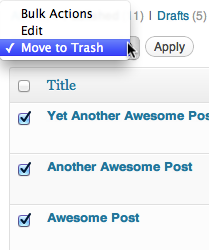
If you only want to trash one post, place your cursor over the post, and a few action links will appear under the post’s title. Click the Trash link.
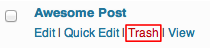
To restore a post that you’ve trashed, view your trash by selecting the Trash link near the top of the page. Hover over the title of the post you want to restore and click Restore. This will move the page back to your Posts menu. You can restore multiple posts at once using the Bulk Actions dropdown.

To permanently delete a post, view your trash by selecting the Trash link near the top of the post. Hover over the title of the post and click Delete Permanently.

To permanently delete all your trashed posts, go to your trash and click Empty Trash.

Quick Edit
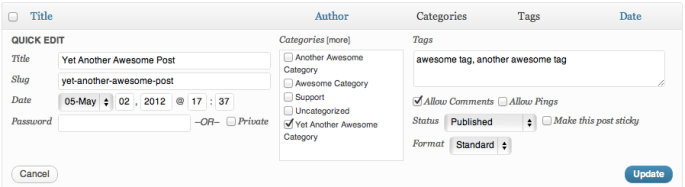
The Quick Edit option will appear below a post title when you hover over the title. Quick Edit lets you modify the post details such as title, slug, date, author, password, privacy, categories, tags, comments, status, and sticky.
Bulk Edit
Using the Bulk Actions drop-down menu at the top of the Edit Posts list, you can bulk edit several posts at a time. To do that, select several posts from the list using the checkboxes on the left. Then select Edit from the Bulk Actions drop-down menu and click the Apply button. You will see options that can be applied to all of the selected posts.
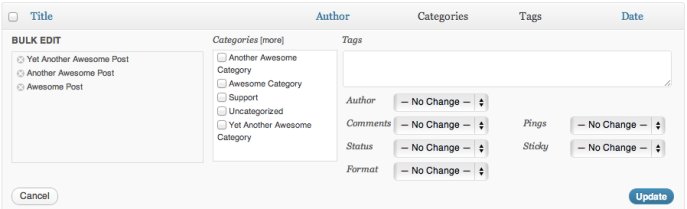
Note: There currently isn’t a way to bulk edit multiple posts to switch the status from Password Protected to Public.
Excerpt View
You can show an excerpt of each post in the list by using Excerpt View button above the list.

When you make the change, a post row will now show some of the content from the post.

Configuring the Screen
By using the Screen Options pull down at the top right of the screen, you can show/hide the columns displayed on the Edit Posts Screen. See the Screen Options support doc for more information.